Scale Navi - How to Use
Basic Operations
← Back to Scale NaviSelect a Key
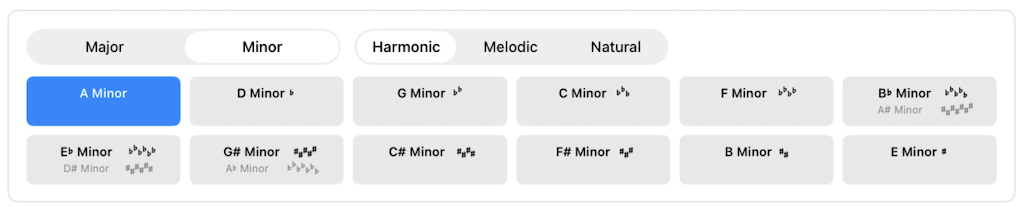
From the menu at the top of the screen, select Major or Minor, then choose the key you want to practice.
Example: C Major, A Minor, etc.
Free version: 12 basic keys (6 Major, 6 Minor). Upgrade version: Access all 24 keys.
For minor keys, you can choose from 3 types of scales:
- Harmonic Minor
- Melodic Minor
- Natural Minor
Check Fingering Numbers
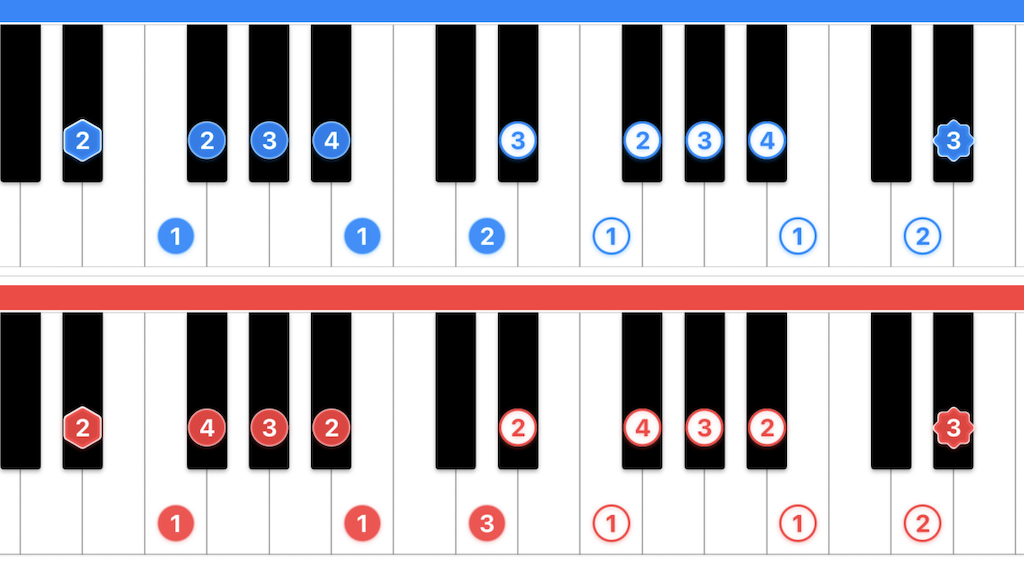
The scale for the selected key is displayed with fingering numbers for each note.
Right hand is shown in blue, left hand in red.
Starting position is hexagon-shaped, turnaround position is seal-shaped, and others are circles. The shapes differ because fingering numbers may vary between start and turnaround positions.
White-outlined numbers indicate repeat fingering. The keyboard displays 1 or 2 octaves. For parts of the playback range that aren't shown on the keyboard, repeated fingering patterns are indicated with white-outlined numbers. For example, when the keyboard shows 2 octaves but you're playing 4 octaves, the 3rd and 4th octaves use the white-outlined (repeat) fingering.
When finger crossing highlight is enabled, positions where finger crossing or thumb-under occurs are visually emphasized. The most important technique points in scale practice are clear at a glance.
Use Playback Function
Set the tempo (20-200 BPM) and octave range (1-4), then tap the play button to play the scale.

The scale will be played, and the keys being played will be highlighted.
Playback Settings:
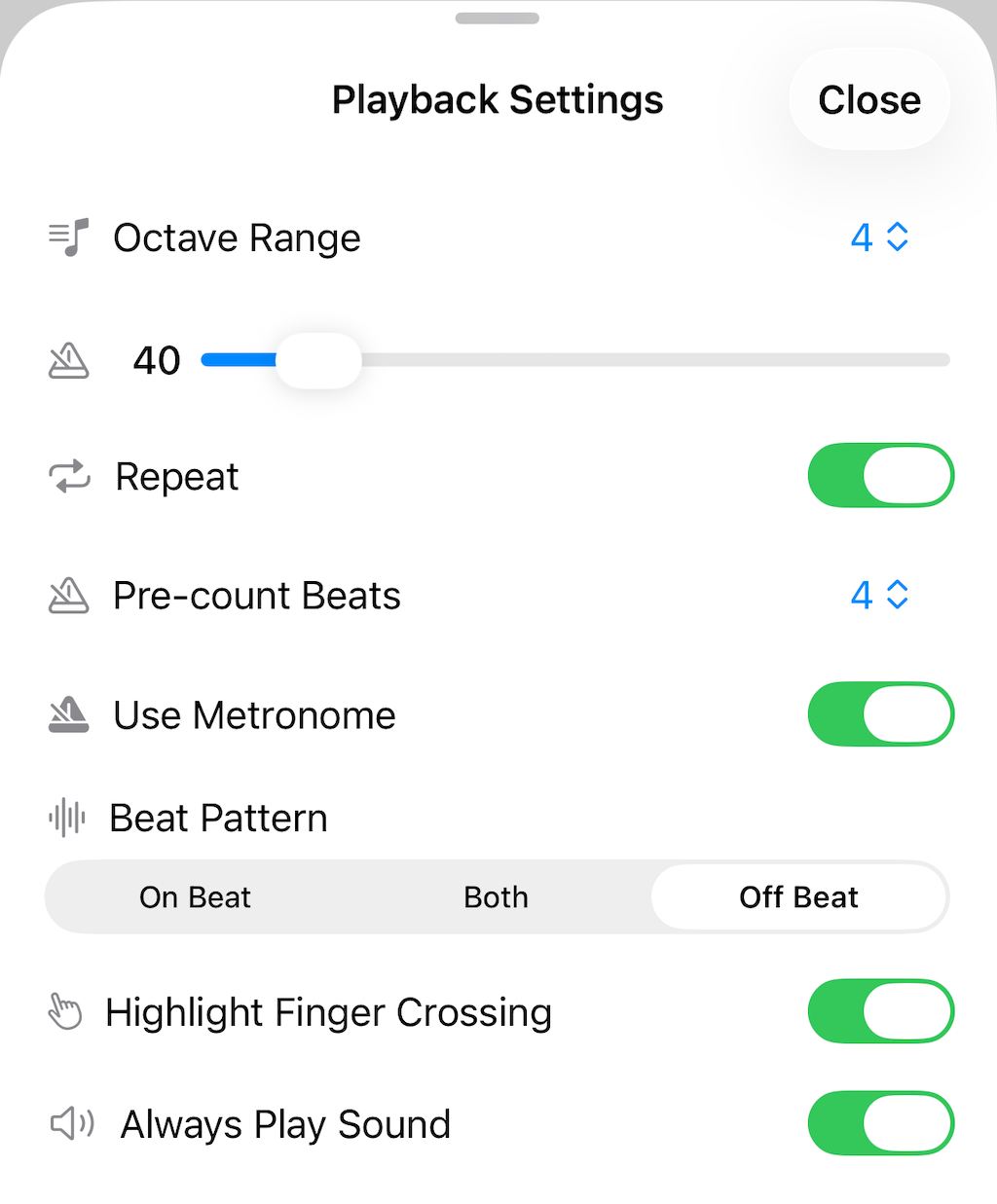
- Octave Range: Specify the range of the scale to play (1-4 octaves)
- Tempo: Specify the playback tempo (20-200 BPM)
- Repeat: Specify whether to repeat the playback
- Pre-count Beats: Specify the count before playing the scale (0-8 beats). Pre-count only works when using metronome
- Use Metronome: Specify whether to include metronome sound
- Beat Pattern: Select the metronome beat pattern (Downbeat/Both/Upbeat)
- Highlight Finger Crossing: Specify whether to visually emphasize finger crossing and thumb-under positions
- Always Play Sound: Specify whether to mute sound in silent mode (Configurable in settings)
Use Metronome
Select time signature (2/4, 3/4, 4/4, 6/8), tempo (20-200 BPM), and beat pattern (Downbeat/Both/Upbeat) to activate the metronome.
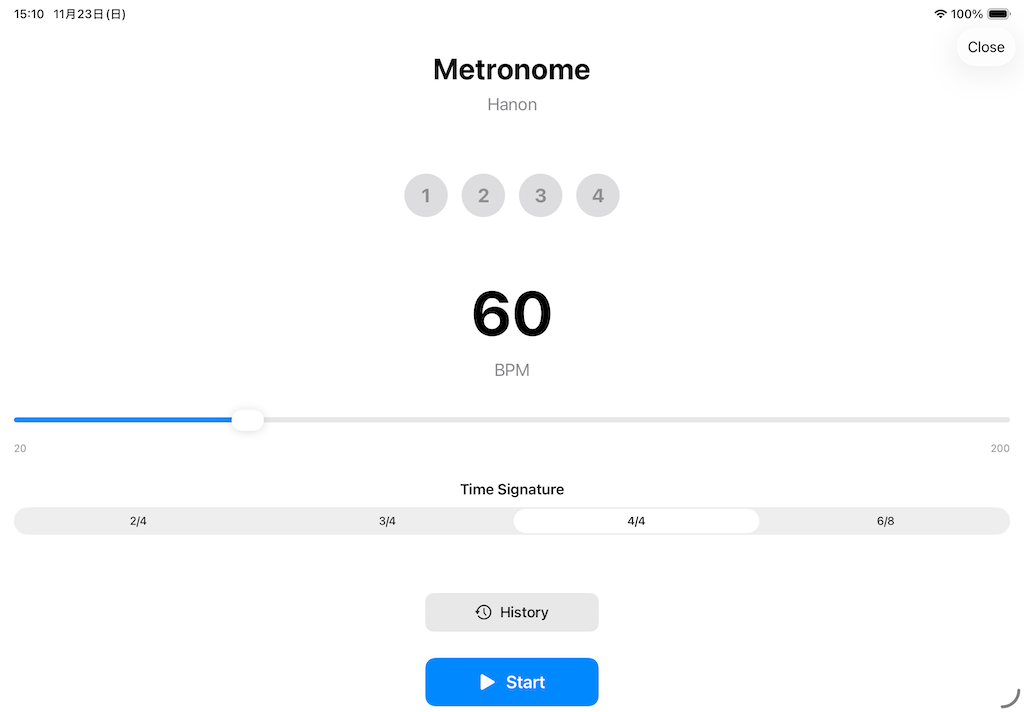
If you close the dialog while the metronome is playing, it continues in floating display mode. It also supports background playback.
Free version: Background playback is limited to 3 minutes. Upgrade version: Unlimited.
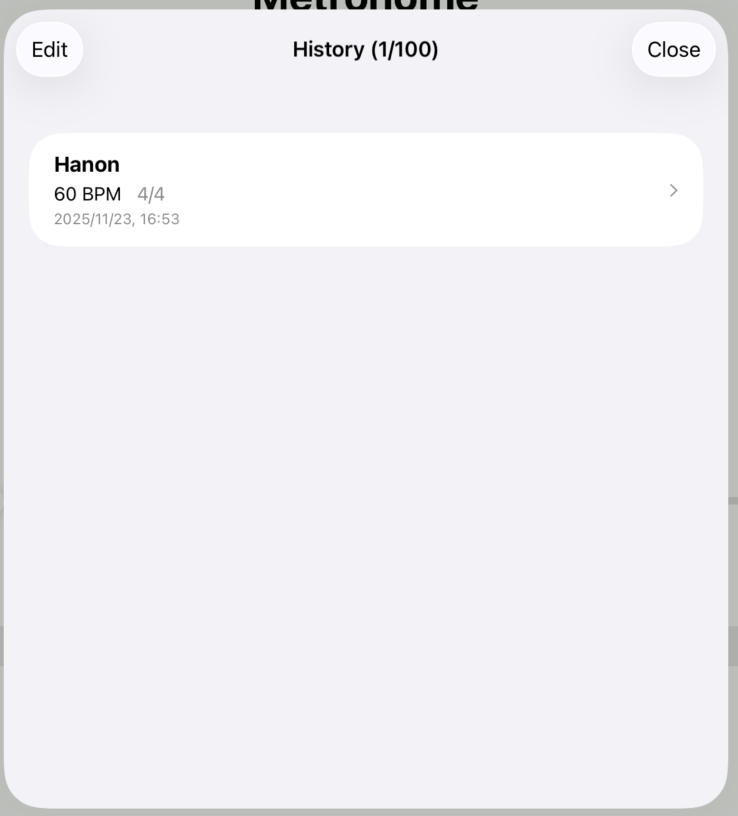
History Feature:
Frequently used tempo settings are automatically saved and can be reused from history.
Track Your Mastery
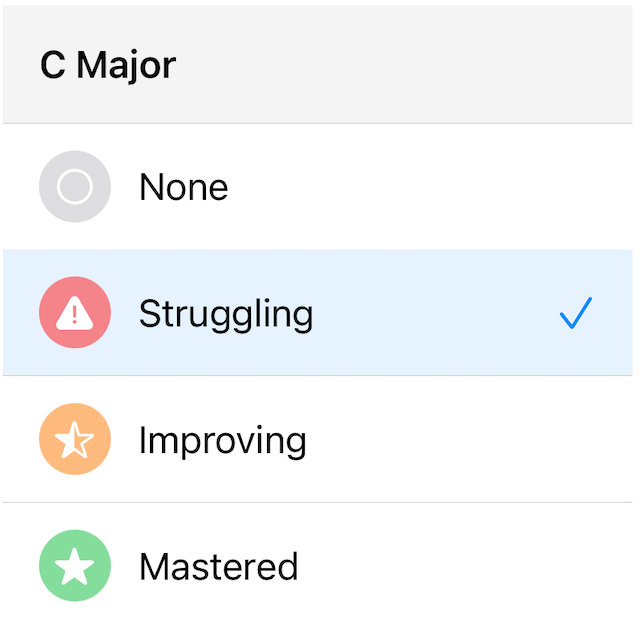
Tap the floating status button at the bottom-left of the screen to set the mastery level for the currently selected key.
Choose from 4 mastery levels:
- None: Keys you haven't practiced yet
- Struggling: Keys you can't play well yet
- Improving: Keys you're almost getting right
- Mastered: Keys you can play confidently
Your mastery levels are displayed with colored borders and icons on the key selection screen, letting you visually track your progress.
Filter Keys
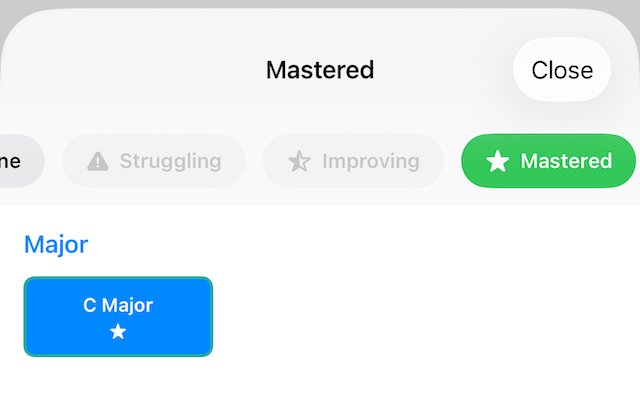
Tap the search button on the key selection screen to open the filter view.
Filter Types:
- Mastery Filter: Filter by status — None, Struggling, Improving, or Mastered
- Minor Type Filter: Filter by Melodic Minor or Harmonic Minor
When a filter is selected, only matching keys are displayed. This is useful when you want to focus on practicing your weaker keys.
Filter state is automatically remembered and applied the next time you open the app.
Track Your Practice Time
Your practice time is automatically recorded while you use the app. The elapsed time is shown next to the current time at the top of the screen.
Setting an End Time:
Tap the time display to set a practice end time. You'll receive notifications as the end time approaches, and the session will automatically end at the set time.
Practice History:
View your past practice records from "Practice History" in the menu. It logs where and how long you practiced, and shows your weekly and monthly totals.
If you allow location access, your practice locations will be displayed on a map.
Practice History Charts:
Visualize your practice time and frequency with charts. Track your progress by day, week, or month to stay motivated.
Recording Feature
Record your practice sessions to track your progress. Waveform display allows intuitive playback control.
Auto-Trim:
Automatically trims silence at the beginning and end of your recordings.
Adding Titles and Comments:
Add a title and comments to each recording to keep your practice notes organized.
Export and Share:
Export your recordings to share with teachers or friends.
Free version: Up to 3 recordings. Upgrade version: Unlimited recordings.
Sheet Music Viewer
Import PDF sheet music into the app and reference it anytime during practice.
Importing Sheet Music:
Open the sheet music list from "Sheet Music" in the menu, then tap the "+" button to import a PDF file.
Automatic Spread Page Splitting:
When a two-page spread has been scanned as a single page, it is automatically split into left and right halves for display. Swipe to navigate between pages.
Zoom and Reading Position Memory:
Pinch-to-zoom for magnified viewing. Your reading position is automatically saved, so you can pick up right where you left off next time.
Vertical Scroll Mode:
Switch to vertical scroll mode for continuous page scrolling while browsing your sheet music.
Navigation Path:
Set anchor points on sheet music and navigate through them in your practice order. Use the guide frame to set display areas, then tap to move to the next anchor. Loop playback is also supported.
Free version: Up to 3 sheets. Upgrade version: Unlimited.
iCloud Sync
Automatically sync your app data across multiple devices. Practice on your iPhone and continue seamlessly on your iPad.
Enabling Sync:
Enable it from "iCloud Sync" in the settings screen. You must be signed in to iCloud.
What Gets Synced:
Recordings, sheet music (PDFs), and app settings are synced across your devices.
Available for all users.
How to Remove Limitations
Upgrade
By upgrading, the following limitations are removed:
- Access all 24 keys: All major and minor keys
- Unlimited recordings: No limit on saved recordings
- Unlimited sheet music: No limit on saved sheet music
- Unlimited background metronome playback: No time restrictions
* Storage depends on available device or iCloud storage
You can upgrade anytime from the settings screen within the app.
Hanon 39 Support
Support for "Scales in All Keys"
Scale Navi is optimized for practicing Hanon Exercise 39 - "Scales in All Keys".
- Key navigation in Hanon 39 order: Easily move to the next key
- Finger crossing and thumb-under highlighting: Technique mastery points are visible at a glance
- All three minor scale types supported: Support for Harmonic, Melodic, and Natural minor scales
Practice Tips
Effective Practice Methods
- Start with a slow tempo
- Focus on playing accurately while checking fingering numbers
- Once comfortable with 1 octave, gradually increase the octave count
- Daily practice, even if brief, is the key to improvement
- Use the metronome feature to practice with stable rhythm
- Use in conjunction with Hanon Exercise 39 "Scales in All Keys" for best results